---
updatedAt: 2025-10-30T22:18:54.000Z
agentTools:
  projectIndex: https://docs.rejoiner.com/llms.txt
---

# Viewing Segments

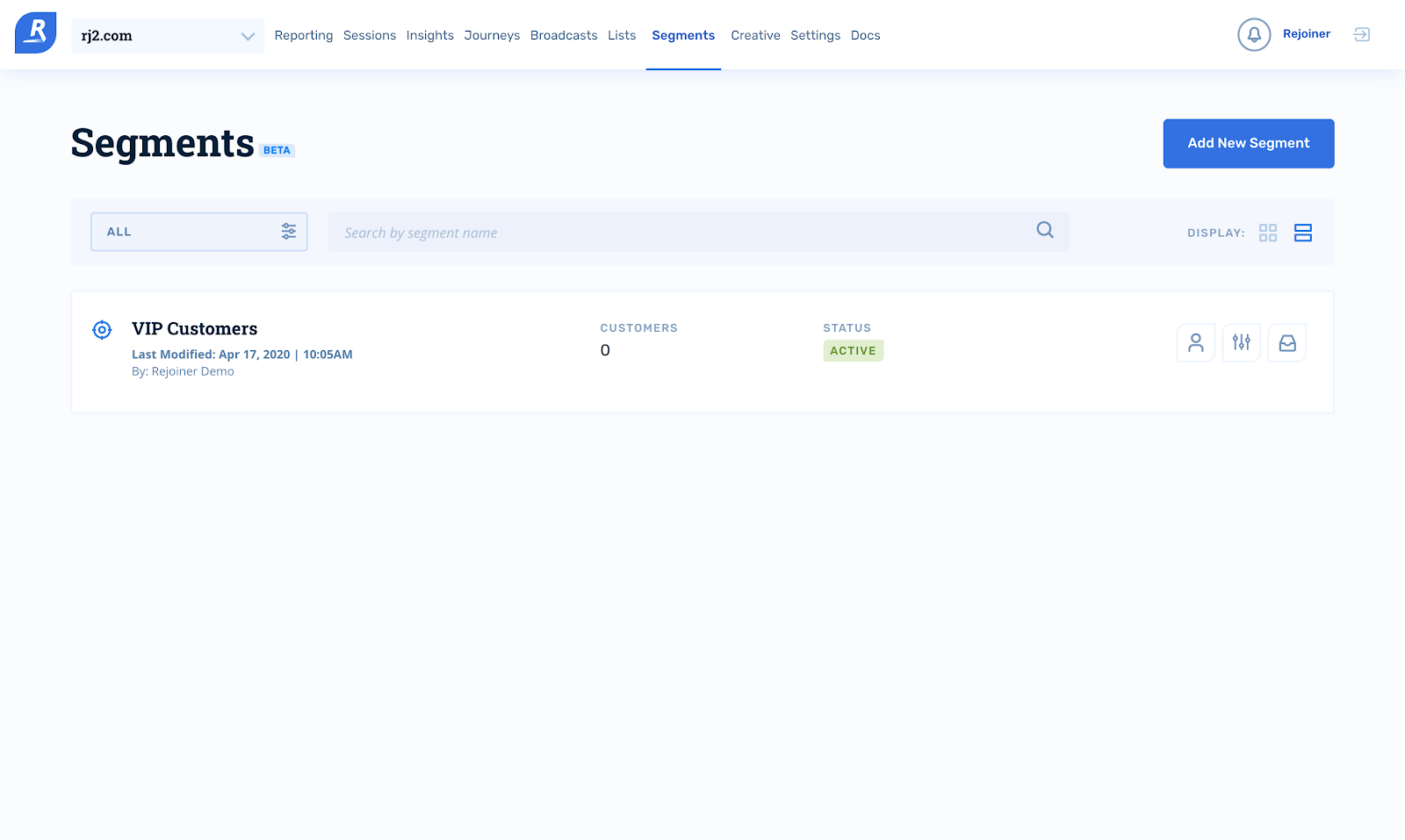
A list of segments can be accessed by clicking on the “Segments” link in the top navigation bar which will take you to a page that looks similar to this:

<img src="https://rejoiner-cdn.s3.amazonaws.com/images/docs/segments/segments_list.png" style={{ width: "500px" }} />

On this page, you are able to filter segments by status. By default, Rejoiner will show all segments. You can also search for a segment by name.

## Interacting with Segments

Each segment listed has the following structure:

<img src="https://rejoiner-cdn.s3.amazonaws.com/images/docs/segments/segment_structure.png" style={{ width: "500px" }} />

### Details

The name of the segment as well as the date and time of when it was last modified—and by which user.

### Customers

The total number of customers in the segment.

### Status

The current status of the segment. Segments have the following statuses:

| Status     | Description                                                                                                                                                                                                            |
| ---------- | ---------------------------------------------------------------------------------------------------------------------------------------------------------------------------------------------------------------------- |
| `Active`   | Segments with an active status are those that are updating every day.                                                                                                                                                  |
| `Archived` | Segments with an archived status are those that are no longer updating.                                                                                                                                                |
| `Inactive` | Segments with an inactive status are those that have been marked as problematic. This status is shown when there are issues with a segment’s query. If you notice one of your segments as inactive, please contact us. |

### Sync

If the segment is connected to any other channel, i.e. Facebook to sync.

## Interacting with Segments

<Table>
  <thead>
    <tr>
      <th>
        Icon
      </th>
      <th>
        Action
      </th>
    </tr>
  </thead>
  <tbody>
    <tr>
      <td>
        <img src="https://rejoiner-cdn.s3.amazonaws.com/images/docs/segments/view_customers.png" />
      </td>
      <td>
        <strong>View Customers</strong> will take you to the customers view in a segment.
      </td>
    </tr>
    <tr>
      <td>
        <img src="https://rejoiner-cdn.s3.amazonaws.com/images/docs/segments/builder_icon.png" />
      </td>
      <td>
        <strong>Go to Builder</strong> will take you to the segment filters.
      </td>
    </tr>
    <tr>
      <td>
        <img src="https://rejoiner-cdn.s3.amazonaws.com/images/docs/segments/archive_segment.png" />
      </td>
      <td>
        <strong>Archive Segment</strong> will allow you to archive a segment. When a segment is archived, the platform will no longer update it.
      </td>
    </tr>
    <tr>
      <td>
        <img src="https://rejoiner-cdn.s3.amazonaws.com/images/docs/segments/unarchive_segment.png" />
      </td>
      <td>
        <strong>Unarchive Segment</strong> will allow you to unarchive a segment, making the segment active once again.
      </td>
    </tr>
  </tbody>
</Table>