---
updatedAt: 2025-10-30T22:19:23.000Z
agentTools:
projectIndex: https://docs.rejoiner.com/llms.txt
---
# Advanced HTML/CSS Editor
In this tutorial, you'll learn about the Advanced HTML/CSS email editor in Rejoiner.
# Getting Started
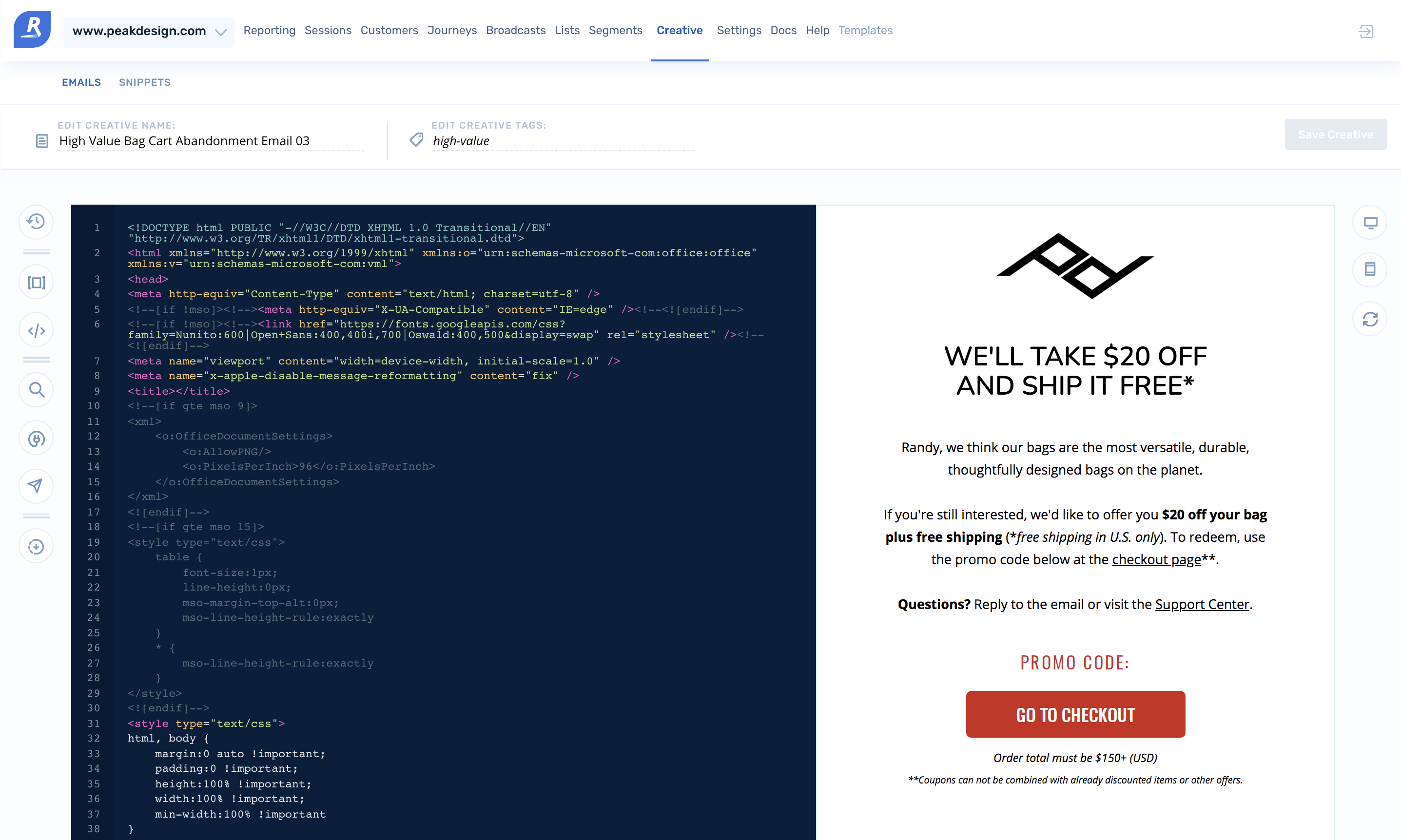
The Advanced Editor is intended for email developers with experience building email creative using only HTML & CSS. This editor provides a high level of flexibility and the ability to make line by line code adjustment but isn't for non-technical marketers.
To get started, click **Creative** in the main navigation. Then, click **Add New Design**.
To build with the Advanced Editor, click **HTML Editor** next:
# Editor Basics
## Version Control
Every saved change to a Rejoiner email template is versioned and can be reverted if required.
First, click the **Past Versions** icon, then locate the version of the template you want to revert to:
You can preview that previous version by clicking **Preview**. You'll click **Restore Version** to revert back to your desired revision:
## Snippet Library
Email developers working with the Advanced Editor are typically making use of [Snippets](https://docs.rejoiner.com/docs/snippets) in order to streamline their workflow.
You can access your snippet library by clicking the **View Snippets**:
## Dynamic Content
Dynamic content, such as cart items or recommendations, will render with placeholder data in the creative editor preview. This will not be placeholder data from your store.
The best way to test dynamic content to injection is to run your QA in the context of the journey or broadcast that will actually use the creative.
## Send Test Emails
Send yourself, or teammates, test emails from the editor by clicking the **Send Test Email** icon: